

What Are SSH Keys?
SSH keys work like a digital lock-and-key system:- Private key — Stays on your computer. Think of this as your house key — never share it.
- Public key — You upload this to Nova Cloud. Think of this as the lock on your door.
Do I Already Have an SSH Key?
Before generating a new key, check if you already have one.- Mac
- Windows
- Linux
Open Terminal (search for “Terminal” in Spotlight, or find it in Applications → Utilities) and run:If you see “Key found!”, skip to Upload Your Key. Otherwise, follow the generation steps below.
Generating a New SSH Key
- Mac
- Windows
- Linux
Step 1: Open Terminal
- Press Cmd + Space to open Spotlight
- Type Terminal and press Enter
Step 2: Generate the Key
Paste this command and press Enter:your-email@example.com with your actual email (this is just a label to help you identify the key).Step 3: Save the Key
You’ll see:Step 4: Set a Passphrase (Optional)
You’ll be asked for a passphrase. You have two options:- Press Enter twice for no passphrase (simpler, fine for most users)
- Type a passphrase for extra security (you’ll need to enter it each time you connect)
Step 5: Copy Your Public Key
Uploading Your SSH Key
- Log in to console.nova-cloud.ai
- Go to Account Settings → SSH Keys
- Click Add SSH Key
- Paste your public key (the text you copied above — it starts with
ssh-ed25519) - Enter a name to help you remember which computer this key is from (e.g., “MacBook Pro”, “Work Desktop”)
- Click Save
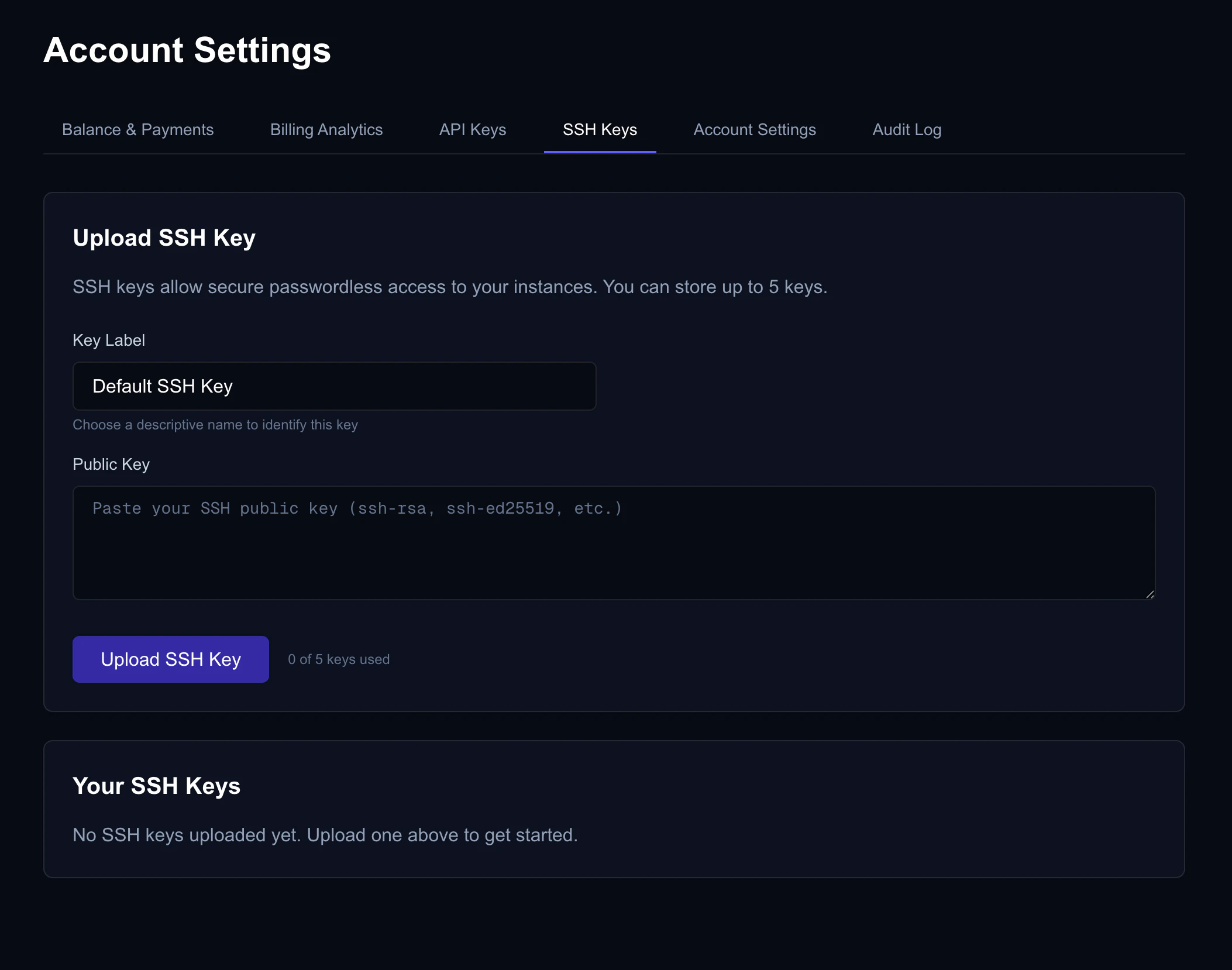
SSH key upload form in Account Settings
You can upload up to 5 SSH keys per account. This is useful if you connect from multiple computers.
Supported Key Types
We recommend Ed25519 for the best combination of security and performance. The instructions on this page generate Ed25519 keys by default.
Connecting to a VM
Once your VM is running (you can see the status on the Dashboard), connect using the IP address shown in the console:- Mac / Linux
- Windows (PowerShell)
- Windows (PuTTY)
yes and press Enter. This is normal and only happens once per VM.Specifying a Key Manually
If you have multiple SSH keys, you can tell SSH which one to use:Managing Your Keys
Viewing Keys
See all your uploaded keys in Account Settings → SSH Keys. Each key shows its name, type, fingerprint, and when it was added.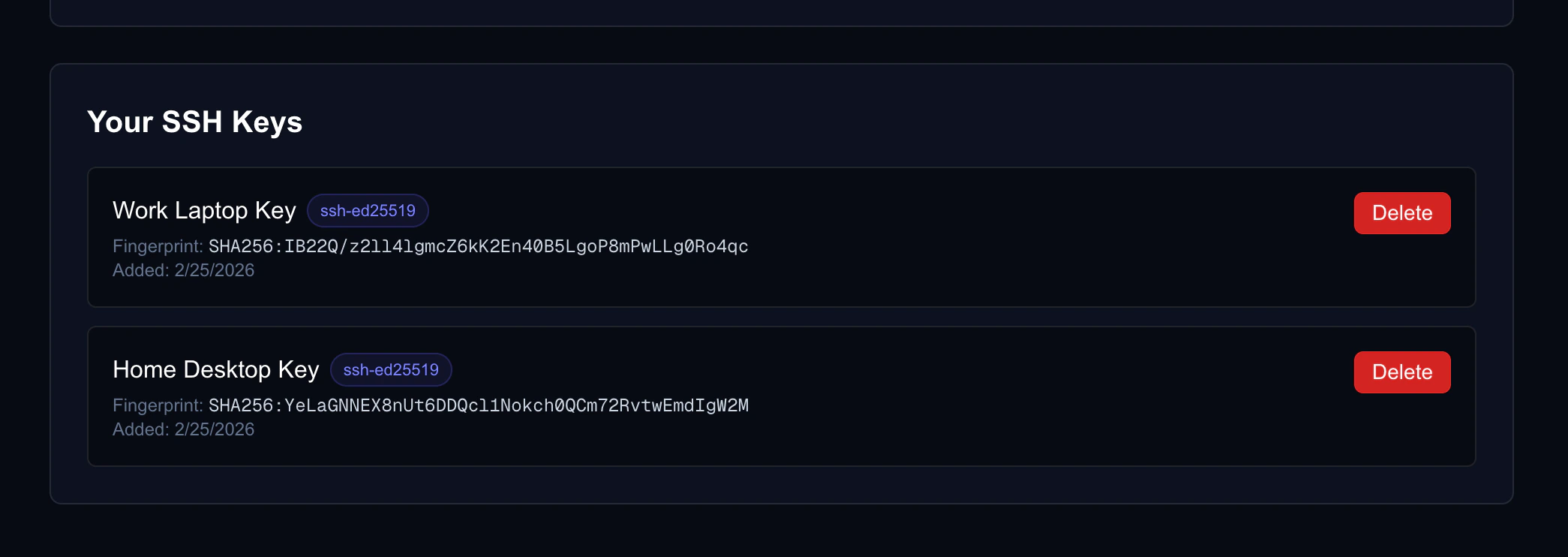
SSH Keys list in Account Settings showing uploaded keys
Deleting a Key
To remove a key you no longer need:- Go to Account Settings → SSH Keys
- Click the delete button next to the key
- Confirm the deletion
Deleting a key from your account does not remove it from VMs that are already running. It only prevents the key from being added to new VMs.
Troubleshooting
Permission denied (publickey)
Permission denied (publickey)
This means the VM doesn’t recognize your key. Try these fixes:
- Make sure you uploaded the right key. The public key you uploaded to Nova Cloud must match the private key on your computer.
- Specify the key explicitly:
- Check your SSH agent:
- Check file permissions (Mac/Linux): Your private key file must not be readable by others:
ssh command not found (Windows)
ssh command not found (Windows)
Windows 10 (version 1809+) and Windows 11 include an SSH client, but it may not be enabled:
- Open Settings → Apps → Optional Features
- Click Add a feature
- Search for OpenSSH Client and install it
- Restart PowerShell and try again
Key format not recognized
Key format not recognized
Make sure you’re uploading the public key (ending in
.pub), not the private key. The public key should be a single line starting with ssh-ed25519, ssh-rsa, or ecdsa-sha2-nistp256.Maximum keys reached
Maximum keys reached
You can have up to 5 SSH keys per account. Delete unused keys in Account Settings → SSH Keys before adding new ones.
Key works for some VMs but not others
Key works for some VMs but not others
SSH keys are added to a VM when it’s created. If you uploaded a new key after creating a VM, that key won’t be on the existing VM.Solutions:
- Create a new VM (it will include your latest keys)
- Or manually add the key inside the running VM:
Connection times out
Connection times out
If SSH hangs and eventually says “Connection timed out”:
- Make sure the VM is in Running status in the dashboard
- Check that you’re using the correct IP address from the dashboard
- Wait a minute — newly created VMs may take a moment to be fully accessible
- Try again. If it persists, the VM may be experiencing issues — try stopping and starting it from the dashboard.