

Browsing the Marketplace
When you log into the console, the Dashboard shows all available GPU offers in a card-based grid. Each card represents a server with one or more GPUs available to rent.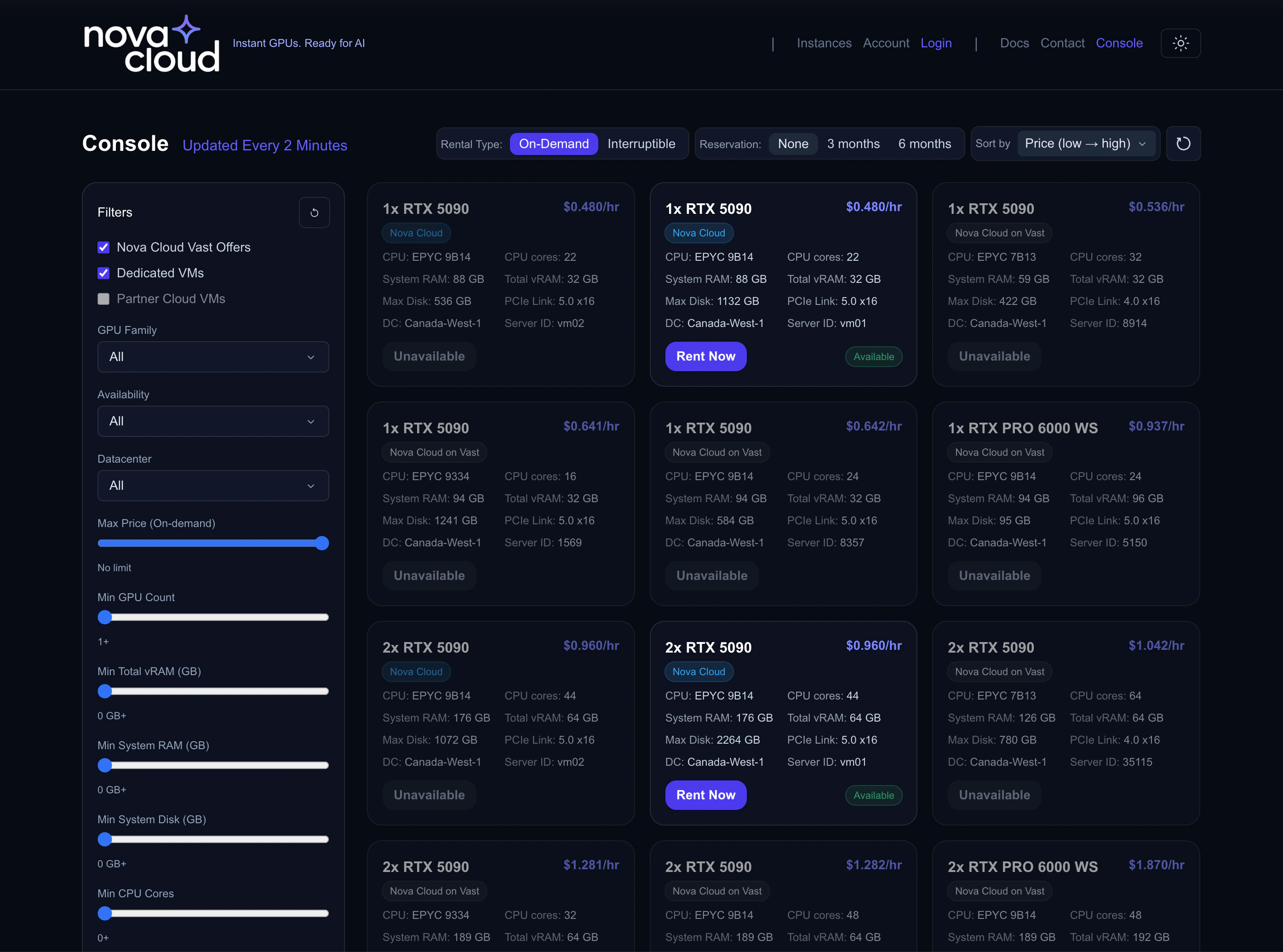
The Nova Cloud marketplace showing available GPU offers
Understanding Offer Cards
Each offer card shows everything you need to know at a glance: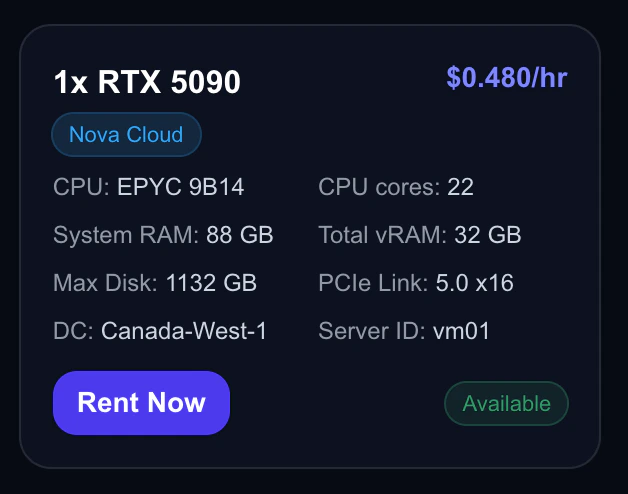
Anatomy of a GPU offer card
Offer Sources
You’ll see two types of offers:- Nova Cloud — Managed directly by Nova Cloud. Click Rent Now to create an instance.
- Nova Cloud Partners — Third-party marketplace offers from trusted partners.
Using Filters
The filter panel lets you narrow down offers to find exactly what you need.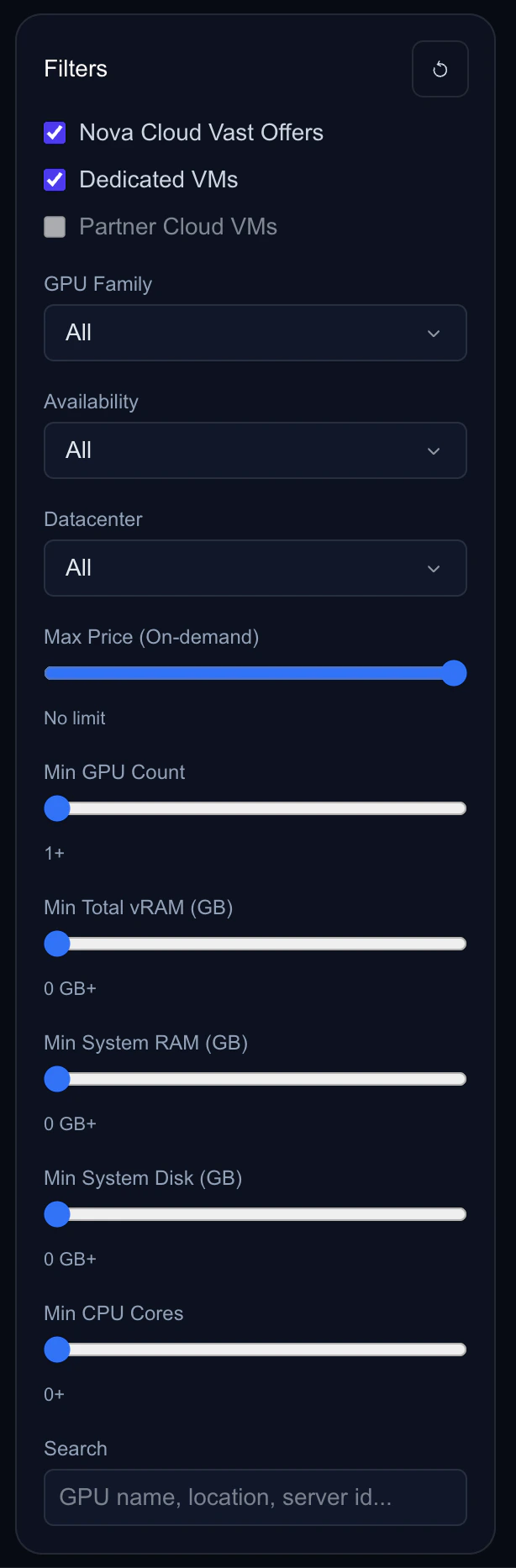
Filter panel with GPU family, rental type, and spec filters
GPU Family
Filter by GPU model:- RTX 5090 — Latest generation, 32GB vRAM, best performance
- RTX 4090 — Previous generation, 24GB vRAM, great value
- RTX PRO 6000 — Professional grade, 96GB vRAM, ideal for large models
Rental Type
- On-Demand — Standard pricing, no interruption risk
- Interruptible — Lowest price, can be preempted
Reservation Period
When browsing, you can filter by reservation period to see discounted pricing:- None — Pay-as-you-go pricing
- 3 months — 10% discount
- 6 months — 20% discount
Spec Filters
Fine-tune results based on your technical requirements:Search
Use the search bar to filter by GPU name, server ID, or datacenter location.Sorting
Sort results to surface the best options:- Price (Low → High) — Find the cheapest option
- Price (High → Low) — Find premium hardware
- GPU Count — See multi-GPU servers first
- Max RAM — Find memory-rich configurations
Choosing the Right GPU
By Workload
By Budget
Creating Your Instance
Once you’ve found the right offer:- Click Rent Now on the offer card
- You’ll be taken to the Create Instance page with the GPU pre-selected
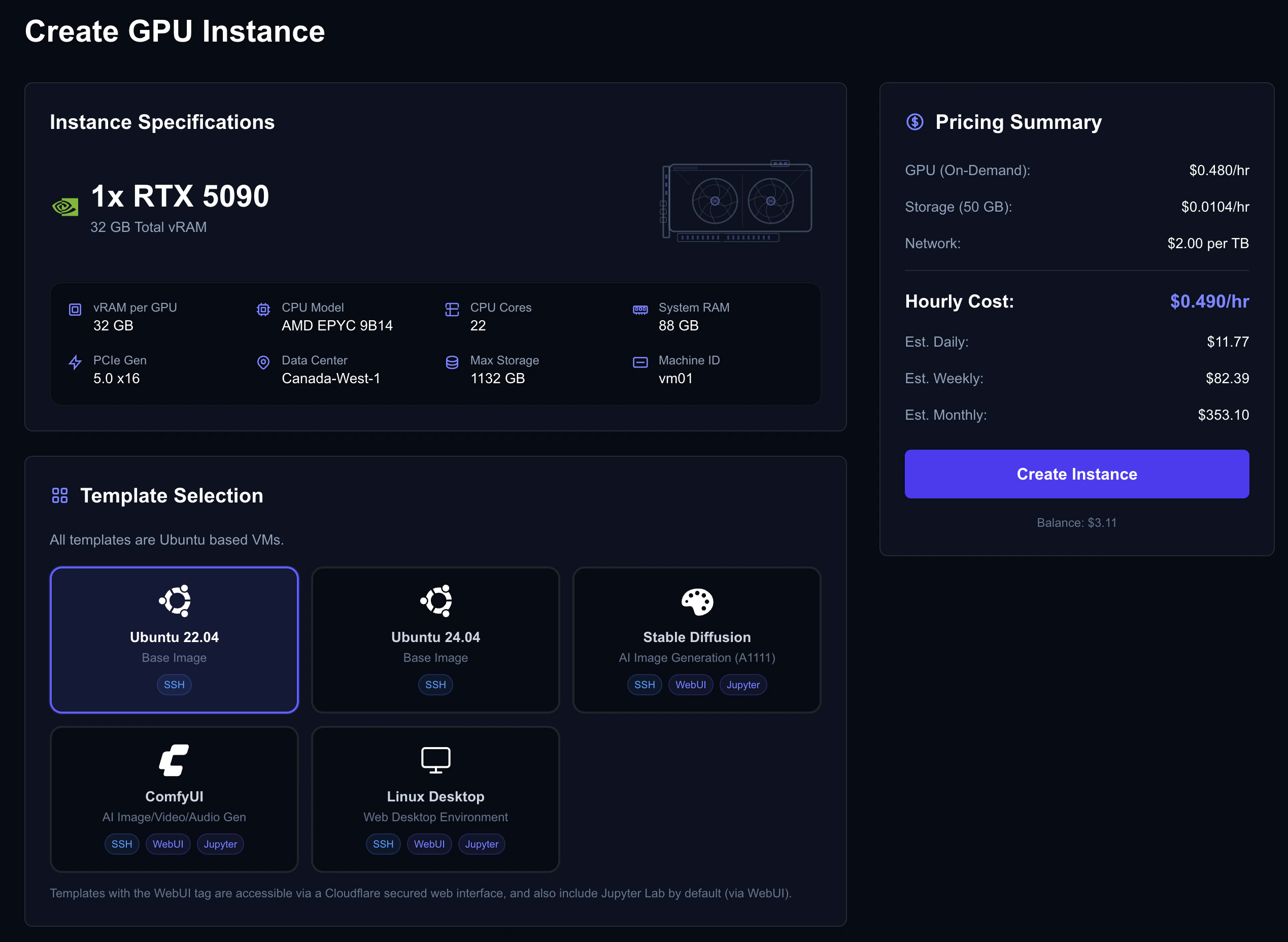
Instance creation page with configuration options
Choose an OS Template
Select a pre-configured environment or start fresh:Templates with “Jupyter” include a WebUI portal you can access from the console — no SSH required. See the Connecting guide for details. The ID column is the value to pass as
template_vmid when creating instances via the API.Configure Storage
Choose your disk size based on your needs:Set Up Authentication
Choose how you’ll connect:- SSH Key — Select one of your uploaded keys (recommended). See the SSH Keys guide if you haven’t uploaded one yet.
- Password — Set a strong password (12+ characters, mixed case, numbers, symbols).
Select a Rental Type
Choose between On-Demand, Interruptible, or Reserved. The cost estimate updates in real-time as you change options. See the Rental Types guide for a detailed comparison of each type.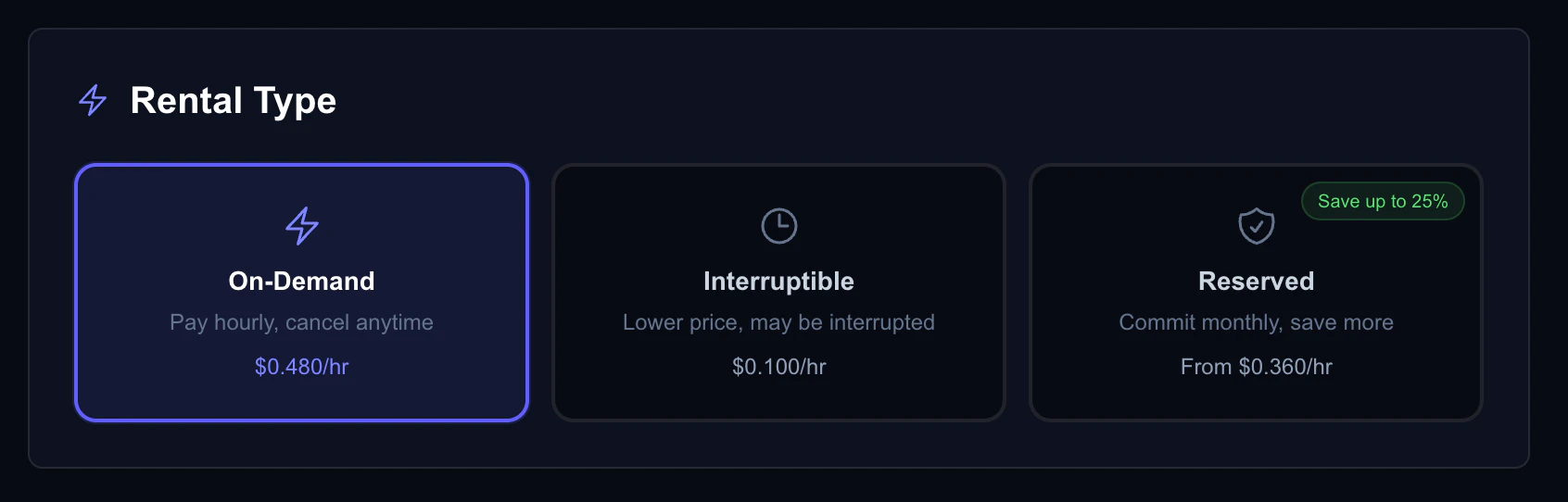
Rental type selection with pricing breakdown
Review & Create
The cost estimate panel shows your projected costs: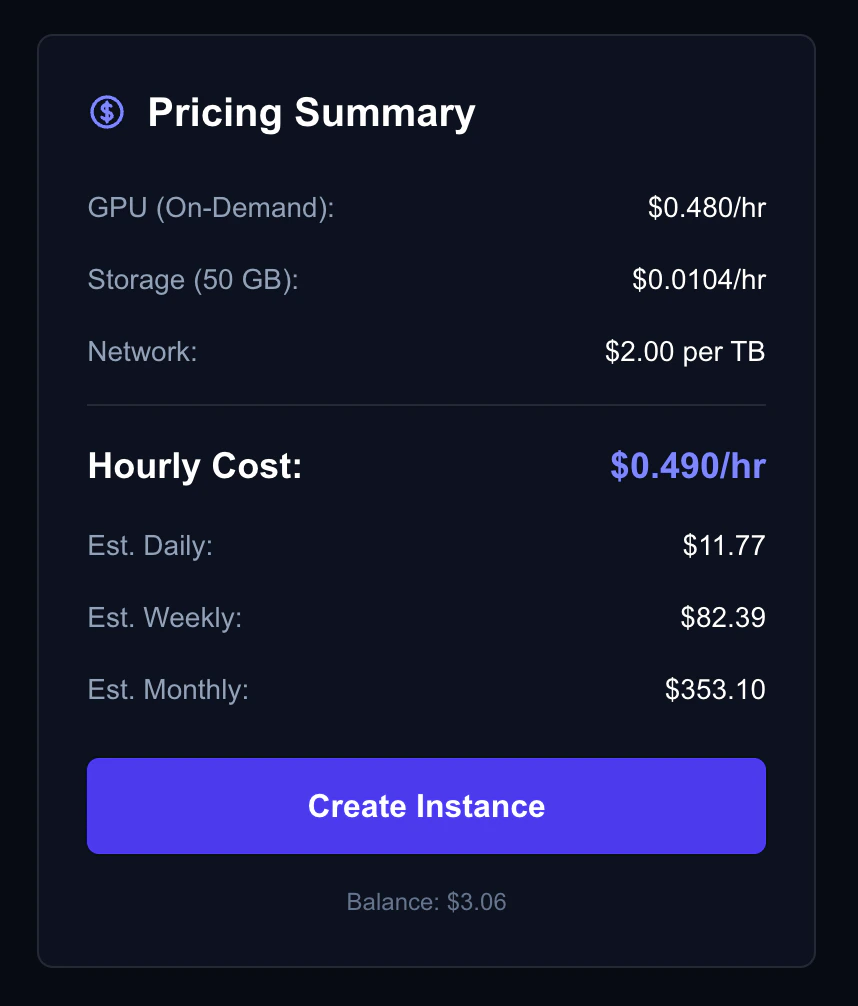
Cost estimate showing hourly, daily, weekly, and monthly projections
- Hourly — GPU + storage cost per hour
- Daily — Projected 24-hour cost
- Weekly — Projected 7-day cost
- Monthly — Projected 30-day cost
- Reserved deposit — Upfront amount (if choosing reserved)
What’s Next?
Connect to Your Instance
Learn how to access your VM via SSH or WebUI.
Instance Ports
Open ports for web services, Jupyter, and APIs.
Rental Types
Deep dive into on-demand, interruptible, and reserved pricing.
Billing
Understand pricing, auto billing, and invoices.