> ## Documentation Index
> Fetch the complete documentation index at: https://docs.nova-cloud.ai/llms.txt
> Use this file to discover all available pages before exploring further.
# Billing & Payments
> Understand Nova Cloud pricing, payment methods, and billing features.
Nova Cloud uses a **prepaid credit** system. You add funds to your account balance and compute costs are deducted automatically as you use GPU resources.
## How Billing Works
### Billing Cycle
Costs are calculated and deducted by the second for running VMs:
* **GPU cost** — Based on GPU type, count, and rental type (on-demand, interruptible, or reserved rate)
* **Storage cost** — Based on allocated disk size, charged even when the VM is stopped
* **Network cost** — Based on data transfer at \$2/TB
### Viewing Your Costs
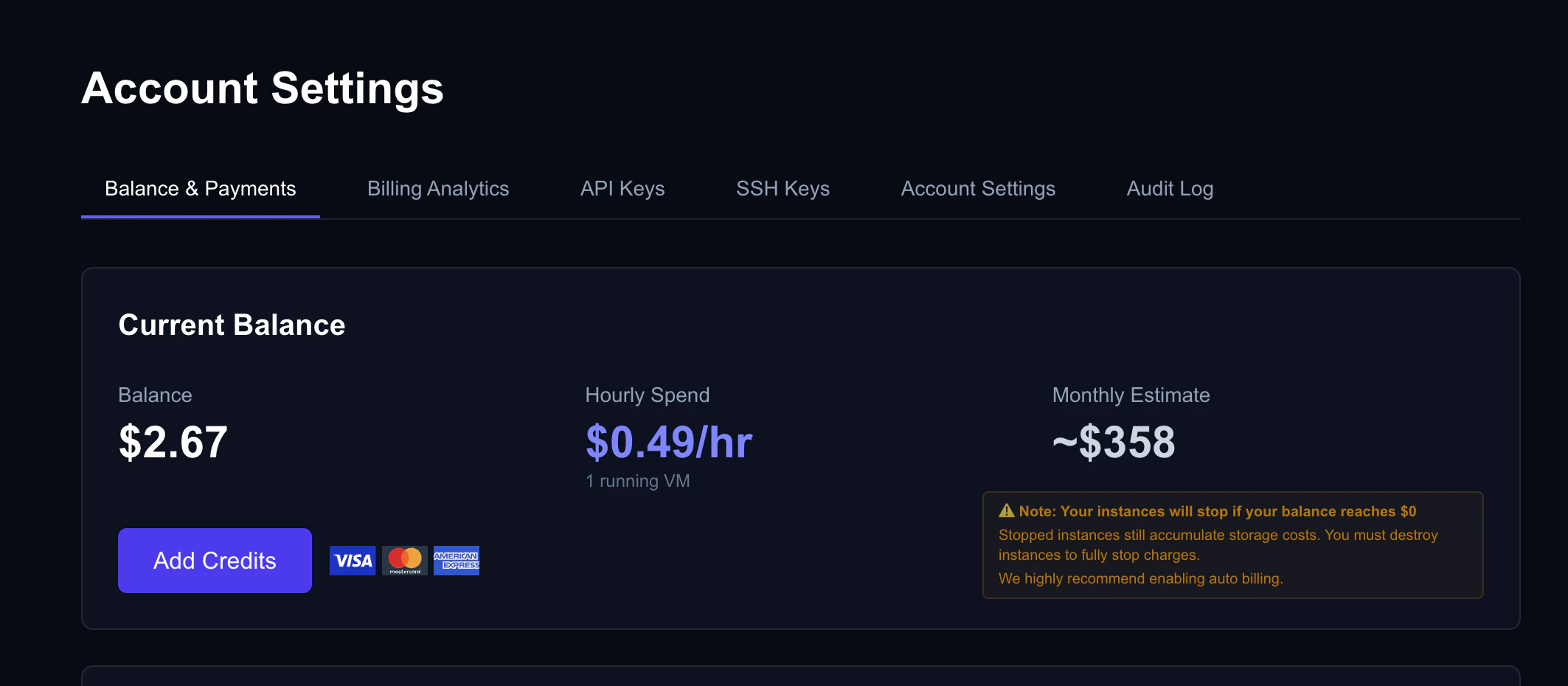
You can view your costs at any time in the console:
1. Go to **Billing** in the left sidebar
2. Your current **balance** and **hourly spend rate** are shown at the top
3. Scroll down to see your **usage history** and **transaction history**
 Monthly PDF invoices are generated automatically and available for download in the Billing section.
## Adding Credits
### Credit Card (Stripe)
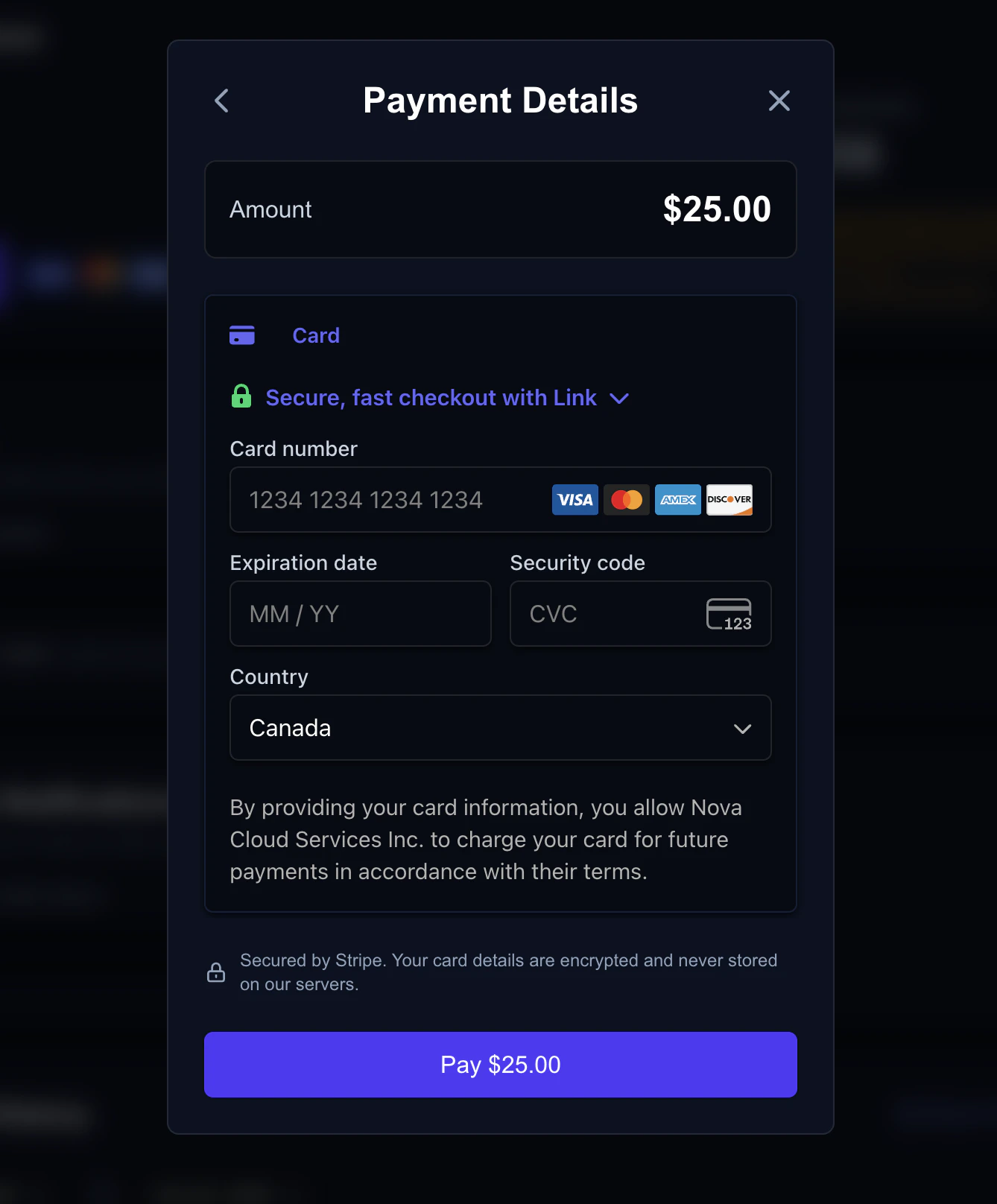
The fastest way to add credits:
1. In the console, go to **Billing**
2. Click **Add Credits**
3. Enter the amount you want to add (minimum **\$5**)
4. Complete payment with your credit card
Monthly PDF invoices are generated automatically and available for download in the Billing section.
## Adding Credits
### Credit Card (Stripe)
The fastest way to add credits:
1. In the console, go to **Billing**
2. Click **Add Credits**
3. Enter the amount you want to add (minimum **\$5**)
4. Complete payment with your credit card
 ### Cryptocurrency
Cryptocurrency payments via Crypto.com Pay are **coming soon**. This option will allow you to pay with BTC, ETH, USDC, and more.
### Signup Bonus
New accounts get a **first-deposit match**: we match your first deposit dollar-for-dollar, up to **\$25 in bonus credit**. Email verification is required to be eligible.
| Deposit | Bonus credit |
| ------------ | ------------ |
| \$5 | \$5 |
| \$15 | \$15 |
| \$25 or more | \$25 (max) |
## Auto Billing
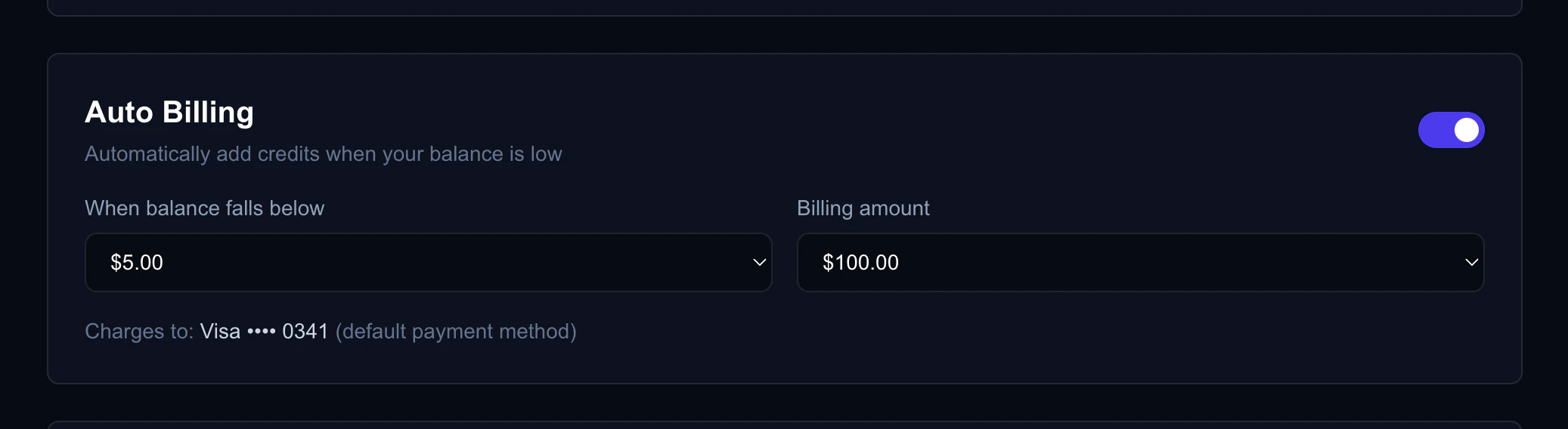
Auto billing automatically adds credits when your balance drops below a threshold. This prevents your VMs from being stopped due to insufficient balance.
### Setting Up Auto Billing
1. Go to **Billing** in the console
2. Make sure you have a saved payment method (credit card)
3. Click **Auto Billing** and enable it
4. Choose your threshold (when to trigger) and amount (how much to add)
### Cryptocurrency
Cryptocurrency payments via Crypto.com Pay are **coming soon**. This option will allow you to pay with BTC, ETH, USDC, and more.
### Signup Bonus
New accounts get a **first-deposit match**: we match your first deposit dollar-for-dollar, up to **\$25 in bonus credit**. Email verification is required to be eligible.
| Deposit | Bonus credit |
| ------------ | ------------ |
| \$5 | \$5 |
| \$15 | \$15 |
| \$25 or more | \$25 (max) |
## Auto Billing
Auto billing automatically adds credits when your balance drops below a threshold. This prevents your VMs from being stopped due to insufficient balance.
### Setting Up Auto Billing
1. Go to **Billing** in the console
2. Make sure you have a saved payment method (credit card)
3. Click **Auto Billing** and enable it
4. Choose your threshold (when to trigger) and amount (how much to add)
 | Setting | Options | Default |
| --------- | ------------------------------ | ------- |
| Threshold | \$2, \$5, \$10, \$25, \$50 | \$5 |
| Amount | \$10, \$25, \$50, \$100, \$250 | \$25 |
If the auto billing charge fails (e.g., card declined), the system will retry. After multiple failures, auto billing is temporarily disabled.
## Low Balance Notifications
Get an email alert when your balance drops below a threshold. Configure this in **Billing** → **Notifications** in the console.
Notifications are sent at most once every 24 hours to avoid spam.
## What Happens When Balance Reaches Zero
When your credit balance drops to \$0:
1. All running **on-demand** and **interruptible** VMs are automatically **stopped**
2. A **7-day warning** email is sent
3. A **reminder** email is sent at day 4 (72 hours before destruction)
4. If you don't add credits within 7 days, all stopped non-reserved VMs are **destroyed**
Add credits or enable auto billing to prevent VM destruction. Reserved instances continue running from their deposit balance and are not affected by zero credit balance.
## Pricing Reference
### GPU Pricing
GPU prices vary by model and rental type. Current pricing is always visible on the **Dashboard** when browsing available GPU offers.
You can also view pricing without an account at [api.nova-cloud.ai/pricing](https://api.nova-cloud.ai/pricing).
### Storage Pricing
Storage is billed per second based on allocated disk size. The rate applies uniformly to all VMs and continues while a VM is stopped.
### Network Pricing
Network transfer is billed at **\$2 per TB**.
### Reserved Discounts
| Commitment | Discount |
| ---------- | -------- |
| 1 month | 3.33% |
| 3 months | 10.00% |
| 6 months | 20.00% |
See [Rental Types](/guides/rental-types) for full details on reserved pricing.
| Setting | Options | Default |
| --------- | ------------------------------ | ------- |
| Threshold | \$2, \$5, \$10, \$25, \$50 | \$5 |
| Amount | \$10, \$25, \$50, \$100, \$250 | \$25 |
If the auto billing charge fails (e.g., card declined), the system will retry. After multiple failures, auto billing is temporarily disabled.
## Low Balance Notifications
Get an email alert when your balance drops below a threshold. Configure this in **Billing** → **Notifications** in the console.
Notifications are sent at most once every 24 hours to avoid spam.
## What Happens When Balance Reaches Zero
When your credit balance drops to \$0:
1. All running **on-demand** and **interruptible** VMs are automatically **stopped**
2. A **7-day warning** email is sent
3. A **reminder** email is sent at day 4 (72 hours before destruction)
4. If you don't add credits within 7 days, all stopped non-reserved VMs are **destroyed**
Add credits or enable auto billing to prevent VM destruction. Reserved instances continue running from their deposit balance and are not affected by zero credit balance.
## Pricing Reference
### GPU Pricing
GPU prices vary by model and rental type. Current pricing is always visible on the **Dashboard** when browsing available GPU offers.
You can also view pricing without an account at [api.nova-cloud.ai/pricing](https://api.nova-cloud.ai/pricing).
### Storage Pricing
Storage is billed per second based on allocated disk size. The rate applies uniformly to all VMs and continues while a VM is stopped.
### Network Pricing
Network transfer is billed at **\$2 per TB**.
### Reserved Discounts
| Commitment | Discount |
| ---------- | -------- |
| 1 month | 3.33% |
| 3 months | 10.00% |
| 6 months | 20.00% |
See [Rental Types](/guides/rental-types) for full details on reserved pricing.